If you only need one thing from this post, it is the table. Everything else here is about typing faster inside the editor; the table is about what no amount of typing will produce.
| Construct | In the Google Docs equation editor |
|---|---|
| Matrix | Cannot be built. No palette entry; \begin{matrix}, \matrix, \pmatrix stay as literal text. |
| Piecewise function (cases) | Cannot be built. No palette entry, and there is no way to break a line inside an equation box. |
| Double integral ∬ | Cannot be built as one symbol. The palette has \int and \oint only; \iint stays literal. Two \int side by side is the workaround. |
| Multi-line aligned equations | Cannot be built. Enter leaves the box instead of starting a new line, so each line has to be its own equation in its own paragraph, with no alignment between them. |
| Auto-sized brackets | Exist — but only as the toolbar’s ( ) [ ] { } | | entries, or their typed names \rbracelr, \sbracelr, \bracelr, \abs. A typed ( stays a plain character, and \left( is not accepted. |
| Upright function names | Exist — \sin, \cos, \log followed by Space render upright. Plain typed sin stays italic. |
The first four are the honest “cannot” list. The last two rows are there because an earlier measurement of what the editor stores (section 8, from the probe of 2026-08-25, appendix E-④) listed them as missing too, and a re-check on a live document on 2026-09-21 found that both exist behind a toolbar entry — the earlier probe had only tried the typed ( and the plain-letter sin. What the editor stores for those two, which is what a converter reads back, has not been re-measured; this post is about what you see on screen.
Everything below was measured in Chrome on Windows, one account, one document, in about half an hour. Docs shows no version number, so the only date I can give you is the date of the measurement.
1. Opening the box: Insert, Symbols, Equation
The menu item has moved. Insert > Equation no longer exists as a top-level entry. It is now the third item of a three-item submenu:
Insert > Symbols > Equation — the submenu holds Emoji, Special characters and Equation, and the Equation entry carries a π² icon.
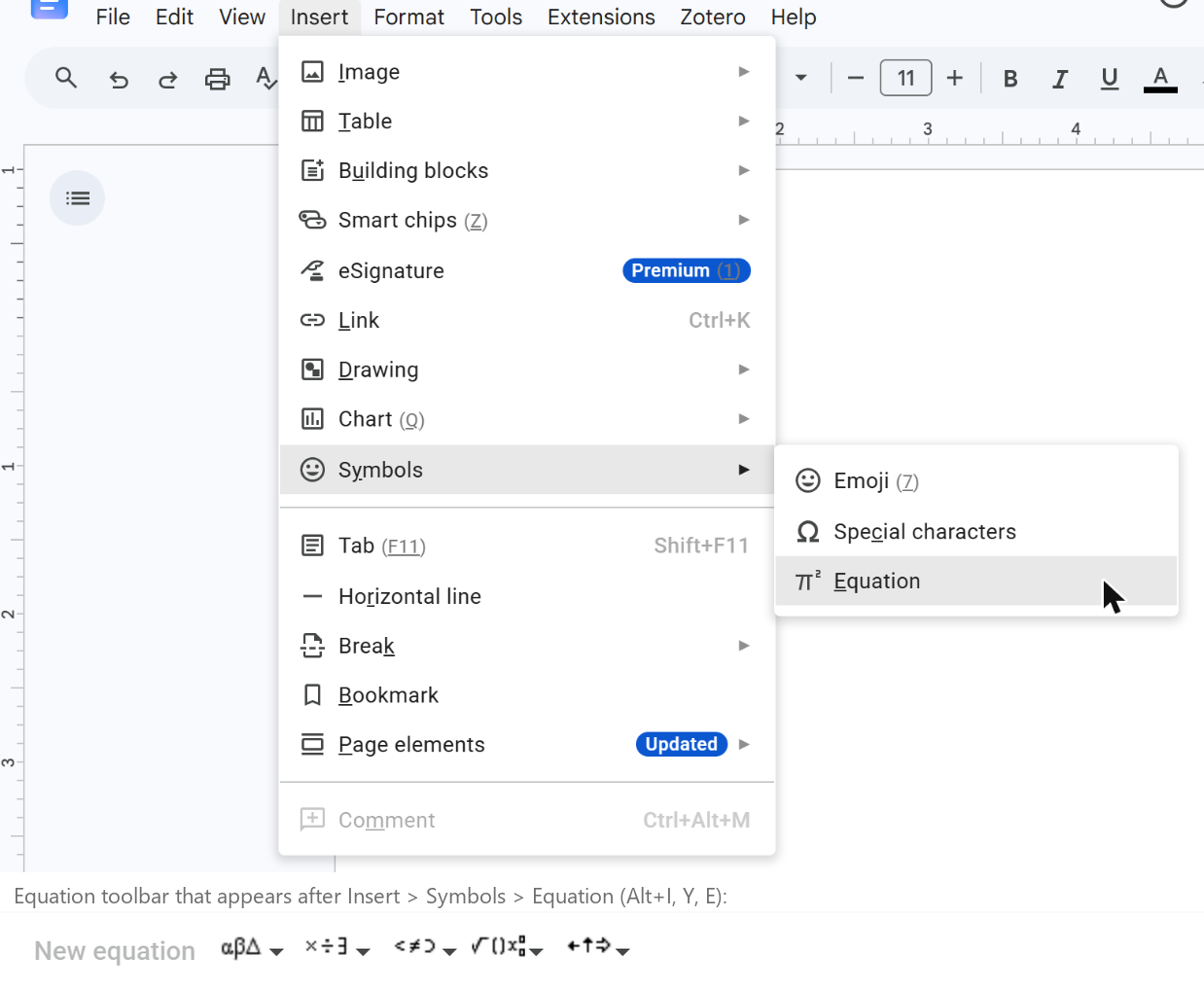 Insert > Symbols > Equation. The underlined accelerator letters in the menu — I for Insert, Y for Symbols, E for Equation — are the keyboard route.
The keyboard route in Chrome on Windows is Alt+I, then Y, then E: Alt+I opens the Insert menu, Y opens Symbols, E inserts an empty equation box at the caret. There is no single-chord shortcut for a new equation that I could find, and I did not try the Ctrl+Alt combinations.
Once a box exists, a second toolbar appears under the main one, labelled New equation, with five dropdowns: Greek letters (αβΔ), miscellaneous operations (×÷∃), relations (≤≠⊃), math operations (√()x) and arrows (←↑→). They are greyed out whenever the caret is outside an equation box. There is no dropdown for text mode, matrices or layout — which is the table above in toolbar form.
2. Backslash commands, and the key that actually converts them
Inside the box you can type LaTeX-style names. The editor does not react while you type them:
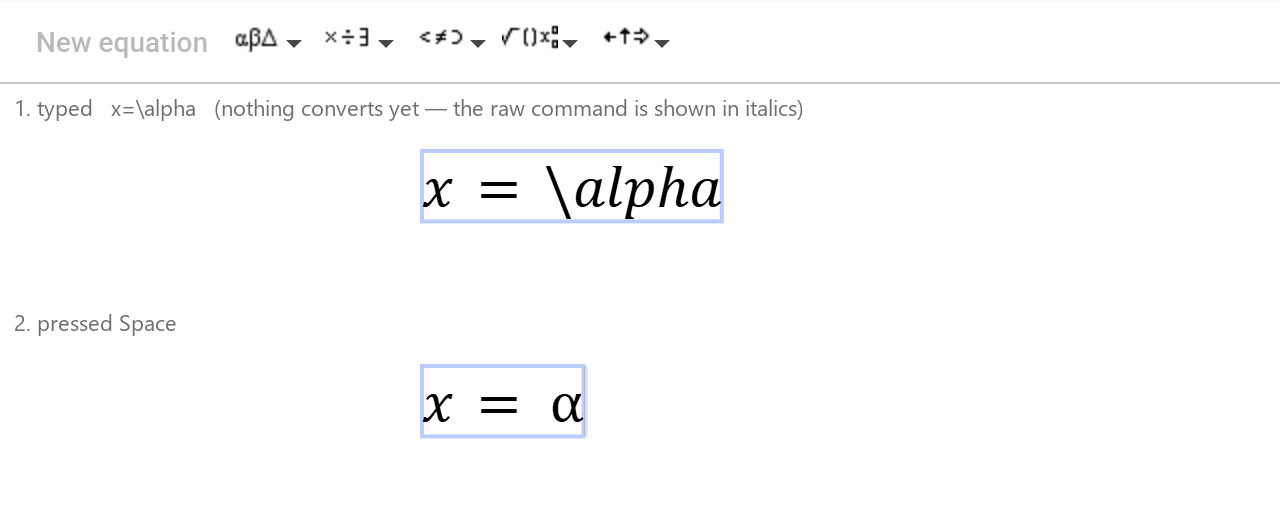 Typing
 x=\alpha shows the raw command in italics. Pressing Space converts it to α; the space itself is consumed.
The rules, as observed:
- Space converts the pending command and is swallowed — no visible space is inserted.
- Any non-alphanumeric key also converts:
\beta+gives β followed by +,\gamma)gives γ),\theta=gives θ =, and\beta\gamma\thetagives βγθ with no spaces, because each backslash closes the previous name. - A digit does not convert.
\epsilon2stays as the literal\epsilon2. Put a Space between the name and the digit. - Enter does not convert. It leaves the text unconverted and moves the caret out of the box — and it does not start a new paragraph. Tab and Shift+Enter do the same. If you notice an unconverted
\alphalater, click back into the box after it and press Space. - There is no autocomplete popup. Nothing suggests names as you type.
- An unknown name is not an error.
\left(,\bigl(,\iint,\to,\text,\mathbf,\langle,\{and the whole\begin{matrix} … \end{matrix}family stay on screen as italic text, with no beep and no message. Some of them get a red spell-check underline, which is the only hint that anything is wrong. Braces,&and\\are ordinary characters here.

\begin{matrix} a & b \\ c & d \end{matrix} followed by Space: no error, no matrix — the LaTeX is kept as text.
That last point matters more than it looks. In LaTeX an unknown command stops the compiler; here it silently becomes prose inside an equation. A document can contain a dozen of these and look fine at a glance.
3. Slots: fractions, roots, limits, and how to move between them
Structures with holes in them — fraction, root, superscript — are built from slots, and the caret placement is consistent enough to type without looking.

\frac Space a+b Tab — the fraction appears with two empty slots, the caret lands in the numerator, and Tab moves it to the denominator.
\frac+ Space: a fraction with two empty slots, caret in the numerator.\sqrt+ Space: a radical with one slot, caret inside it.^and_create a superscript or subscript slot immediately — no Space needed — attached to what was typed just before them.\int,\oint,\sum,\lim+ Space: the operator with limit slots. For\intthe caret lands in the lower limit first, and the limits stack above and below the sign rather than beside it.\limgets one slot underneath.\binom+ Space: a two-row binomial with auto-sized parentheses.\vec,\hat,\bar,\overline+ Space: a decorated slot. (\widehatand\overlineare also toolbar entries.)
Moving between slots:
| Key | What it does |
|---|---|
| Tab | Next slot of the innermost structure (numerator → denominator). From the last slot it exits that structure: denominator → just after the fraction; inside a root → just after the radical, still inside whatever slot the root sat in. At the top level, Tab exits the equation box. |
| Right / Left arrow | Walk through the slots linearly. Right at the end of the numerator → start of the denominator; Left at the start of the denominator → end of the numerator; Left from just after the fraction → end of the denominator; Left from just outside the box → back inside it. |
| Shift+Tab | Does not go to the previous slot. From the denominator it exited the fraction; from the end of the box it exited the box. Use Left arrow to go back. |
Put together, the quadratic formula is one line of keystrokes:

x=\frac Space -b\pm \sqrt b^2 Right -4ac Tab Tab 2a. The Right arrow leaves the superscript; the first Tab only exits the radical (still in the numerator), the second moves to the denominator.
4. The palette is the command list
The five dropdowns are not a subset of what you can type — they are the whole vocabulary. Every palette entry has an accessible name in the page, and every one of those names is also a typeable backslash command. That gives you the complete list of what the editor understands:
- Greek (40):
alphathroughomega, thevarforms (varepsilon,vartheta,varpi,varrho,varsigma,varphi) and the eleven capitals fromGammatoOmega. - Miscellaneous operations (32):
times div cdot pm mp ast star circ bullet oplus ominus oslash otimes odot dagger ddagger vee wedge cap cup aleph Re Im top bot infty partial forall exists neg triangle diamond. - Relations (21):
leq geq prec succ preceq succeq ll gg equiv sim simeq asymp approx ne subset supset subseteq supseteq in ni notin. - Arrows (12):
leftarrow rightarrow leftrightarrow uparrow downarrow updownarrowand their capitalised double-line forms. - Math operations (20):
frac sqrt rootof subsuperscript subscript superscript overline widehat bigcapab bigcupab prodab coprodab rbracelr sbracelr bracelr abs intab ointab sumab limab.
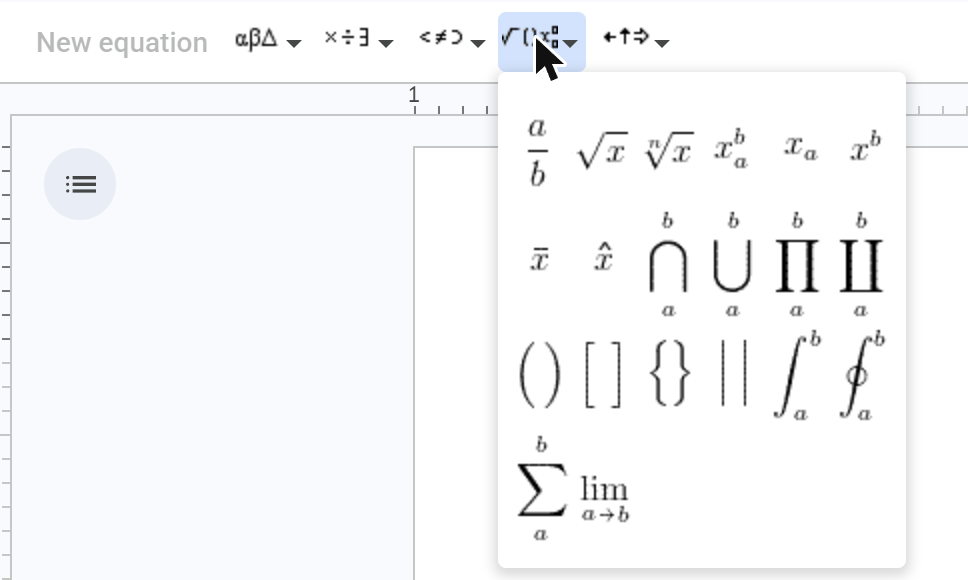 The Math operations dropdown (√()x) is the complete structural vocabulary. Four bracket pairs, two integrals, sum, lim — and nothing that makes rows.
Two consequences of “the palette is the list”:
\neworks because it is in the relations list.\todoes not, because it is not — type\rightarrow. I checked\neand\absand\rbracelrby hand; I did not check\neq.- The names that are not LaTeX —
rbracelr,sbracelr,bracelr,abs,intab,sumab,limab,rootof,subsuperscript— are Google’s own. They are worth knowing because some of them are the only way to get a construct, which is what the next section is about.
5. The four things it cannot build
Back to the table, with what was actually tried.
Matrix. There is no palette entry, and typing \begin{matrix} a & b \\ c & d \end{matrix} produces the literal text in the screenshot above. \matrix and \pmatrix do the same. Nothing in the editor makes a second row.
Piecewise function. Same reason from the other side: \cases stays literal, and there is no line break inside a box. Enter, Shift+Enter and Tab all leave the box.
Double integral. \iint is literal (it gets the spell-check underline). The palette’s integrals are \int and \oint, each with limit slots. Two \int in a row is the only way to write ∬, and it reads as two single integrals because that is what it is.
Multi-line aligned block. Not in the earlier probe’s list, but it belongs with the other three: anything that in LaTeX would be align or gather has to be one equation object per line, one paragraph per line, with nothing keeping the equals signs under each other.
6. The two things the earlier list got wrong
Both of these were reported as missing in the September measurement and in the probe it came from (appendix E-④). Both exist — through the toolbar, not through the characters you would type in LaTeX.
| Auto-sized brackets. The Math operations dropdown has four bracket pairs: ( ), [ ], { } and | , with typeable names \rbracelr, \sbracelr, \bracelr and \abs. Each one is a slot-bearing structure, and it grows with what you put inside it. A typed ( is still a plain character and stays character-sized. \left( and \right) are not accepted. |
 Left: the toolbar’s ( ) entry, typed as
 \rbracelr, grows with the fraction. Right: a typed ( ) around the same fraction stays the size of a character.
Upright function names. \sin, \cos and \log followed by Space render as upright function names, the way LaTeX’s \sin does. Plain typed sin stays italic, like any run of variables — which is what the earlier probe had measured.

sin x \ne \sin x: the first sin is three italic letters, the second is an upright function name.
The caveat, repeated because it matters: this is what the editor displays. Whether it stores \sin as a function, as a symbol code, or as three letters with a style flag is a different question, and one that has to be answered by reading the document back through Apps Script, as the September post did for everything else. Until that is done, do not assume a converter will see the difference between the two halves of that screenshot.
7. If you need a matrix anyway
Nothing in this post makes a matrix appear in Google Docs’ own equation editor, because nothing can. What you can do is stop using that editor for the constructs it lacks and write those as LaTeX text in the paragraph instead — $$\begin{pmatrix} a & b \\ c & d \end{pmatrix}$$, or a cases block, or an align* — and have an add-on render that text into an equation image in place.
That is what LaTeXFlow for Google Docs does: it scans the document for $…$ and $$…$$ text, shows each match as a card with a preview, and replaces the text with a rendered image on request. The image is not a native equation object — it will not open in the equation toolbar — but the LaTeX source stays in the image’s alt text, so it can be reverted to text, edited and converted again. The install-to-first-equation walkthrough is in How to Convert LaTeX in Google Docs.
A reasonable division of labour, then: the native editor for the things it does well — Greek letters, fractions, roots, sums and integrals with limits, typed fast with backslash names and Tab — and LaTeX text plus a converter for the four things it cannot build.
- What the native editor actually stores, function by function → What Google Docs’ Equation Editor Actually Stores
- Writing the LaTeX for matrices, cases and aligned equations → the four delimiters and which is safe where