
Many worksheets and tests start in Google Docs™ because that is where colleagues comment and where last year’s copy lives. At some point you may want the same sheet as LaTeX: for a cleaner PDF, for a question bank, or because the rest of the course is already in Overleaf. This post takes one real worksheet through LaTeXFlow Export and into Overleaf, and looks at what each part of the sheet becomes. Export needs a license key; the setup clicks are in the step-by-step Google Docs™ to LaTeX guide.
1. The worksheet
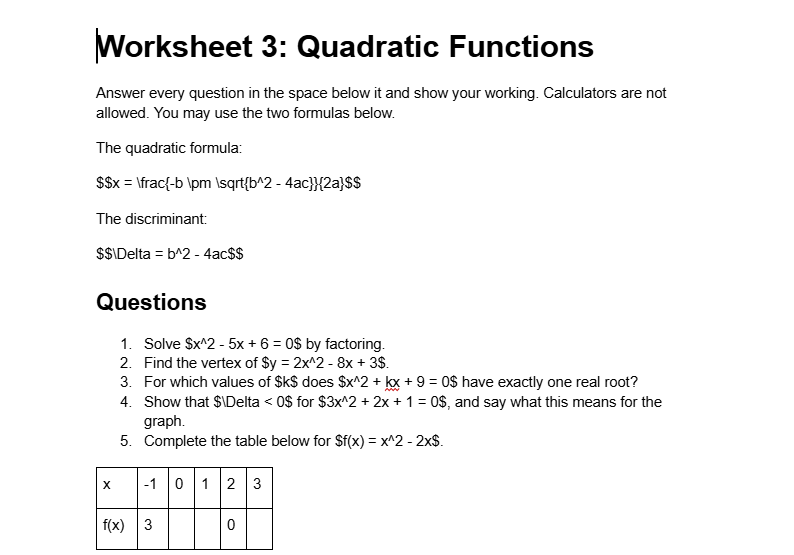
A heading, two lines of instructions, two formulas as display equations, a second heading, five numbered questions with inline equations, a small value table and a bonus line. The equations were typed as LaTeX between $$…$$ and $…$:
On the Scan tab, Scan Document found “11 equation(s) — display: 2, inline: 9”, and Convert All turned them into equation images. This step is free, and it is what students see if you share or print the Docs version:
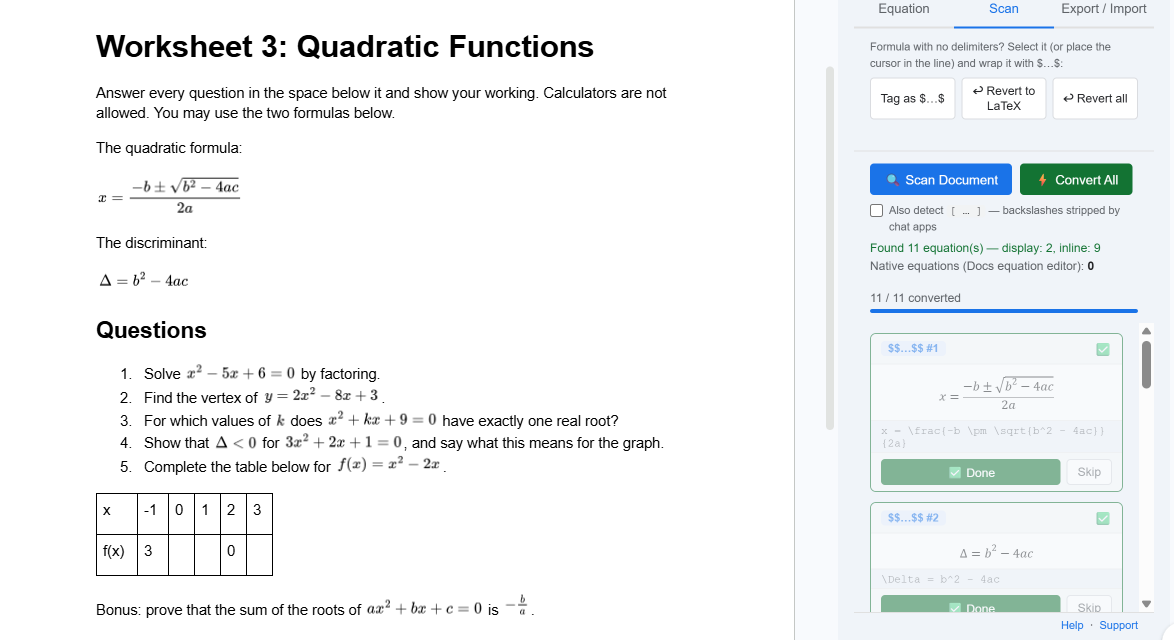
Export does not need this step. It reads equations whether they are LaTeX text, LaTeXFlow images or equations made in the Docs equation editor; converted images keep their LaTeX source, so nothing is retyped.
2. Export
On the Export / Import tab, leave Full document selected (or pick Selection to export only the highlighted part) and press Convert to LaTeX:
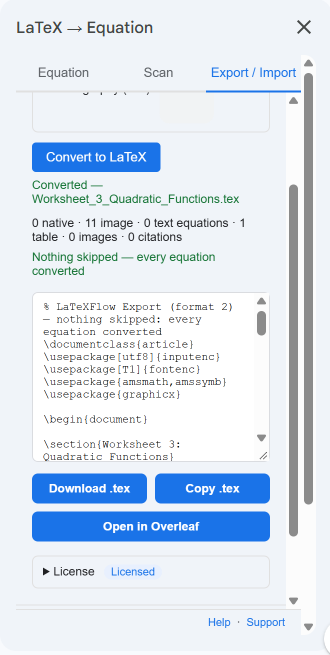
The sidebar names the file after the document (Worksheet_3_Quadratic_Functions.tex) and counts what it found: 11 equations, all from converted images (none from the Docs equation editor, none left as text), 1 table, no images, no citations. “Nothing skipped — every equation converted” means no warnings. Below that is a preview of the file and the Download .tex, Copy .tex and Open in Overleaf buttons.
3. What is in the file
The whole file is 44 lines. The first line is a comment from LaTeXFlow that says whether anything was skipped; if something was, the warnings are listed there as well as in the sidebar:
1
2
3
4
5
6
7
8
9
10
11
12
13
14
15
16
17
18
19
20
21
22
23
24
25
26
27
28
29
30
31
32
33
34
35
36
37
38
39
40
41
42
% LaTeXFlow Export (format 2) — nothing skipped: every equation converted
\documentclass{article}
\usepackage[utf8]{inputenc}
\usepackage[T1]{fontenc}
\usepackage{amsmath,amssymb}
\usepackage{graphicx}

\begin{document}

\section{Worksheet 3: Quadratic Functions}

Answer every question in the space below it and show your working. Calculators are not allowed. You may use the two formulas below.

The quadratic formula:
\[
x = \frac{-b \pm \sqrt{b^2 - 4ac}}{2a}
\]
The discriminant:
\[
\Delta = b^2 - 4ac
\]
\subsection{Questions}

\begin{enumerate}
  \item Solve $x^2 - 5x + 6 = 0$ by factoring.
  ...
  \item Complete the table below for $f(x) = x^2 - 2x$.
\end{enumerate}

\begin{center}
\begin{tabular}{|l|l|l|l|l|l|}
\hline
x & -1 & 0 & 1 & 2 & 3 \\
\hline
f(x) & 3 &  &  & 0 &  \\
\hline
\end{tabular}
\end{center}

Bonus: prove that the sum of the roots of $ax^2 + bx + c = 0$ is $-\frac{b}{a}$.

\end{document}
Part by part:
- Headings. Docs Heading 1 became
\section, Heading 2\subsection. - Paragraphs are separated by an empty line, as LaTeX expects. A line directly after a display equation (“The discriminant:”) follows it without one, so LaTeX treats it as the same paragraph and does not indent it.
- Equations. The
$$…$$displays became\[ … \]; inline equations stay in$…$. - The numbered list became
enumerate. - The table became a
tabularwith a left-aligned column for each Docs column and a rule (\hline) between rows, centred. Column widths, borders and cell colours from Docs are not carried over; LaTeX sizes the columns to their content.
Fonts, font sizes, colours and line spacing are not exported either. The document class sets those.
4. Open in Overleaf
Open in Overleaf sends the file to Overleaf as a new project. You need to be signed in to Overleaf; if you are not, it shows the login page first, and after signing in the project opens with the file as main.tex.
Overleaf adds its own “Welcome to Overleaf” comment block at the top of main.tex, above the LaTeXFlow line. It is only a comment; delete it or leave it.
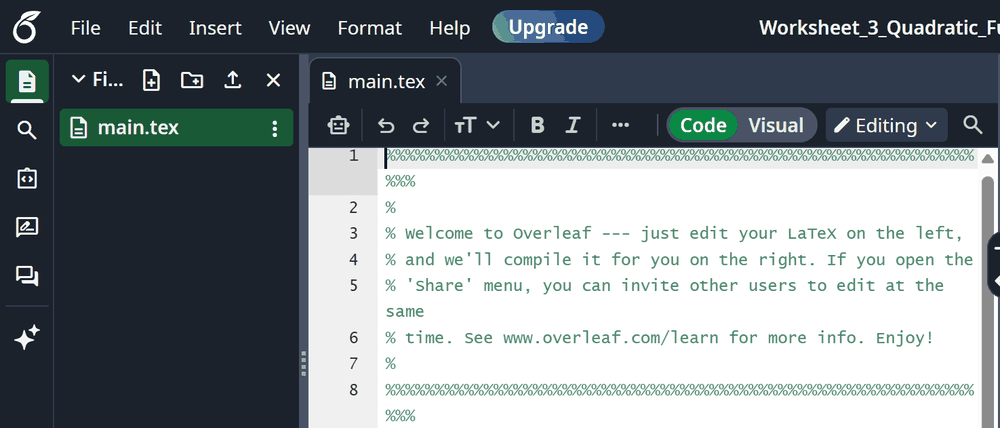
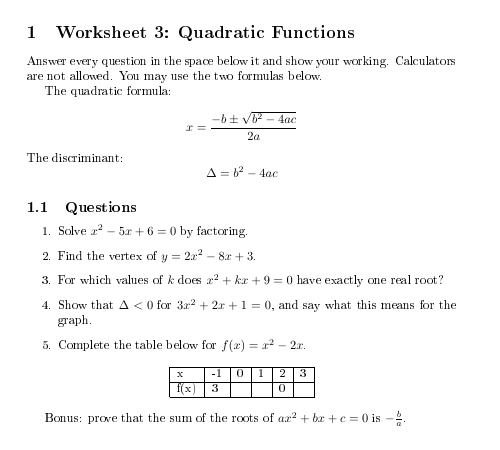
If you prefer to compile locally, Download .tex gives the same file. This is the first page of the file compiled with pdfLaTeX:
5. Before you print
A few things are worth a look in the .tex, not because anything is wrong, but because LaTeX and Docs make different default choices:
- Section numbers. LaTeX numbers sections, so the title prints as “1 Worksheet 3: …” and the second heading as “1.1 Questions”. For a worksheet you may want
\section*{…}and\subsection*{…}, or a\titleand\maketitlefor the top line. - Answer space. Empty lines left in Docs become empty lines in the
.tex, and LaTeX does not turn those into vertical space. If students write on the sheet, add\vspace{3cm}(or similar) after each\item. - Table columns. Every column is left-aligned. For numbers,
corrin thetabularcolumn list may read better. - Images. This sheet has none. An image in the document is written as a framed placeholder box (“Image 1”), and the image file has to be added to the Overleaf project by hand.
If the class keeps a Docs copy for comments and a LaTeX copy for printing, the two do not stay in sync by themselves: an edit in one is not in the other until you export again.
6. Use the exported file as a LaTeX worksheet or exam template
Once the changes above are in, the file works as a template for the next sheet or test: keep the preamble and the layout, replace the questions. Here is this worksheet’s export with the section 5 changes made by hand — unnumbered headings, a name and date line, answer space after each question (one \answerspace command you can resize in one place), centred table columns:
- worksheet-template.tex — compiles with pdfLaTeX as it is, locally or after uploading it to a new Overleaf project.
For the next sheet you can also skip the template and write the questions in Google Docs™ as before: Export gives you a new .tex, and you copy its questions into the template.
- License keys: LaTeXFlow store
- What Export converts, activation, cancelling and refunds: Export & Import guide