
LaTeXFlow has Export (Google Docs™ → .tex) and Import (.tex → Google Docs™). Used one after the other, they make a loop, and the natural question is how much of a document is still the same after going round once. This post answers it with two real documents rather than a feature list:
- a worksheet written in Docs, exported, then imported into an empty tab (how the worksheet was exported);
- a short paper received as a
.texfile, imported, then exported again (how the paper was imported).
Short answer: the text, the structure and every equation come back. Formatting, and the parts of LaTeX that Docs has no place for, do not.
1. Docs → .tex → Docs: the worksheet
The original, after Scan and Convert:
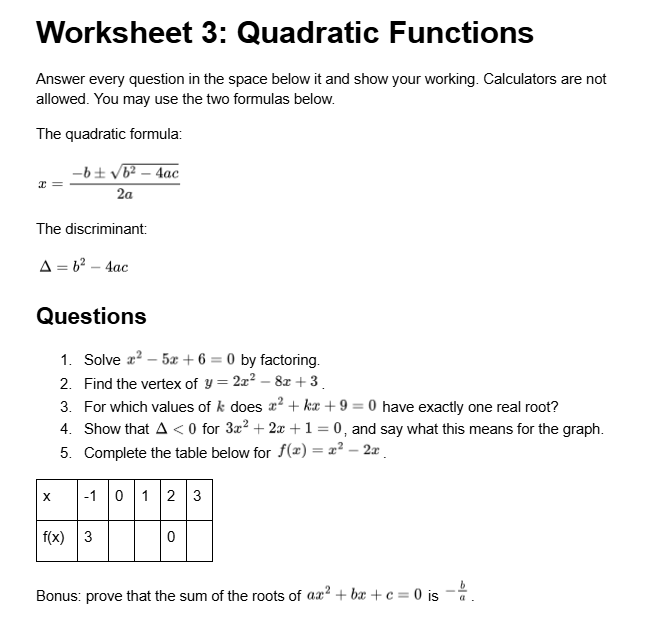
The exported .tex, imported into an empty tab. Import writes equations as LaTeX text, so this is the state right after Import:
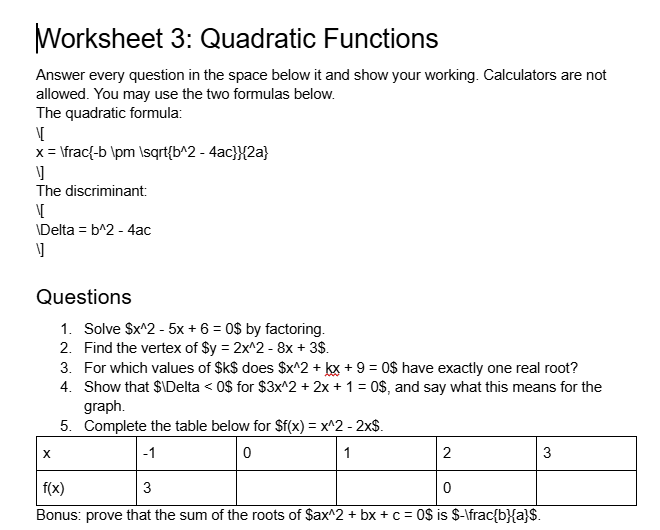
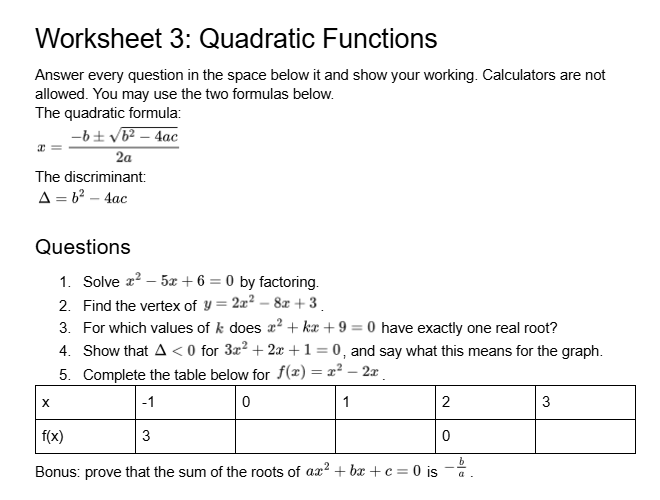
And after running Scan Document and Convert All in that tab, which again found and converted all 11 equations:
| Came back the same | Came back changed |
|---|---|
| Every paragraph’s text | Headings are plain Heading 1 / Heading 2 in the default Docs style; the bold and size of the original are gone |
| Both headings, still headings | No space between paragraphs: the original’s spacing after each paragraph is not exported |
| The five numbered questions, numbered | Display equations: three lines of text after Import; after Scan, images at inline size and aligned left instead of centred |
| Every table cell | The table fills the page width with equal columns; the original was narrow, sized to its content |
| All 11 equations, found again by Scan | Less space above and below the table |
Nothing in the worksheet was lost. Everything in the right column is formatting, which Export leaves to LaTeX on purpose: fonts, sizes, colours, line and paragraph spacing, column widths and borders are not written to the .tex, so there is nothing for Import to bring back.
2. .tex → Docs → .tex: the paper
The paper goes the other way. It has a title and author, sections, a footnote, two citations with the .bib inside the file, a list, a table of matrices with a caption, and a figure with a caption. After Import and Export, the new .tex compiles cleanly (pdfLaTeX, BibTeX, pdfLaTeX twice), and most of it reads like the original. The differences:
In the original .tex | After Import | In the exported .tex |
|---|---|---|
\section, \subsection, itemize, tabular, equations | Docs headings, list, table; equations as LaTeX text | the same commands — back as they were |
\cite{strang2016} + .bib in filecontents | [@strang2016] in the text; entries saved to the document’s Bibliography | \cite{strang2016}, the .bib in filecontents*, \bibliography{refs} — back |
\author{Draft for review} | a Subtitle line | \author{} plus a centred \large Draft for review line — changed |
\footnote{…} | [1] in the text and a “Notes” heading at the end | [1] as text and \section{Notes} — not a footnote any more |
\caption{…} in a table | an italic centred line | \textit{…} in a center block, no \caption — changed |
figure with \includegraphics{…} and \caption | a bold [Image: eigen-ellipse.png — insert here] line and a Caption: line | the same two lines as text — no figure |
table[h], figure[h] floats, the image width option | not kept | not there — lost |
One visible side effect: the footnote marker is now ordinary text [1], and with the numeric plain bibliography style the citations also print as [1] and [2]. In the PDF they look alike:
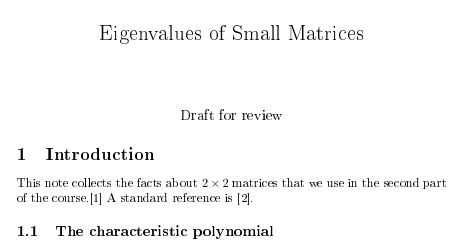
Here [1] is the footnote and [2] is the Strang citation, but a reader cannot tell. If the paper will leave Docs again, turn the note back into \footnote{…} in the .tex, or into a real Docs footnote (Insert › Footnote) before exporting — Export writes a real Docs footnote as \footnote{…}.
3. What Export marks, and what it drops
Some things never reach the .tex in the first place, and Export says so in the sidebar and in a comment at the top of the file:
- Images in the document become a framed placeholder box
Image 1,Image 2, …. The image files are not in the.tex. If that file is imported again, each box comes back as a bold[Image 1 — insert here]line. - Characters with no LaTeX mapping are written as
\LFXmissing{XXXX}, the character’s code point, and print as a bold[U+XXXX]. Accented Latin letters, Korean and a table of a few hundred symbols pass through; the placeholder is for the rare rest, so the file always compiles and you fix that one spot. - Strikethrough is dropped, with a warning.
And some are dropped without a warning, because they are style rather than content: font names, font sizes, colours and highlights, paragraph spacing and indents, the bullet shape of lists, table borders, cell colours and column widths.
On the way in, Import keeps what it cannot convert visible in the document: unknown commands and environments stay as monospace source, \ref{key} becomes [ref:key], and \label and comments are dropped with a note.
4. Which copy to work in
The loop is reliable for text, structure and equations, which is most of what you type. It does not preserve layout, and a few LaTeX features (footnotes, captions, floats, cross-references) come back as text that you fix by hand. A practical rule follows from that:
- If the document is shared and commented in Docs, keep Docs as the working copy and export when you need the
.tex. The fixes you make in the.tex(section stars, spacing,\footnote) are lost the next time you export, so make them at the end. If the document lives in LaTeX and Docs is only for a review round, keep the
.texas the working copy, import it for comments, and carry the agreed changes back by hand rather than exporting over the original.- License keys: LaTeXFlow store
- Exporting a document step by step, from the licence key to Overleaf: Google Docs™ to LaTeX with LaTeXFlow
- What Export and Import convert: Export & Import guide