
“How do I convert a Word document to LaTeX?” is one of the most viewed questions on TeX Stack Exchange, and the usual answers are command-line tools or retyping. If you have a Google account, there is another route that needs no installation on your computer: Google Docs™ can open a .docx, and when it does, it turns Word’s equations into its own equations. From there, LaTeXFlow Export writes the document as a .tex file.
This post goes through that route step by step. It also covers what changes on the way, because some of it happens in Docs’ conversion before LaTeXFlow sees the document. Export needs a license key; the setup clicks are in the step-by-step Google Docs™ to LaTeX guide.
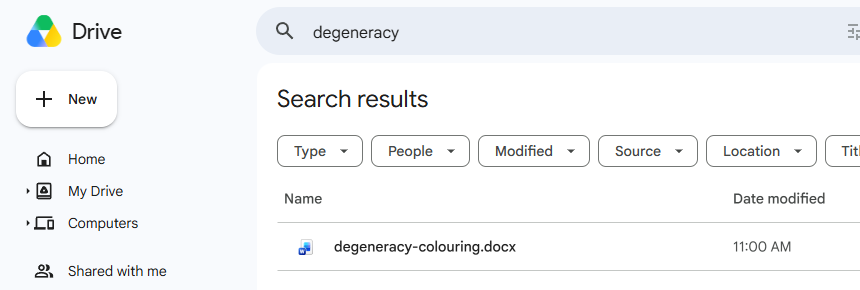
1. Upload the .docx to Google Drive
In Google Drive, use New › File upload and pick the .docx. Nothing is converted yet; Drive stores the Word file as it is.
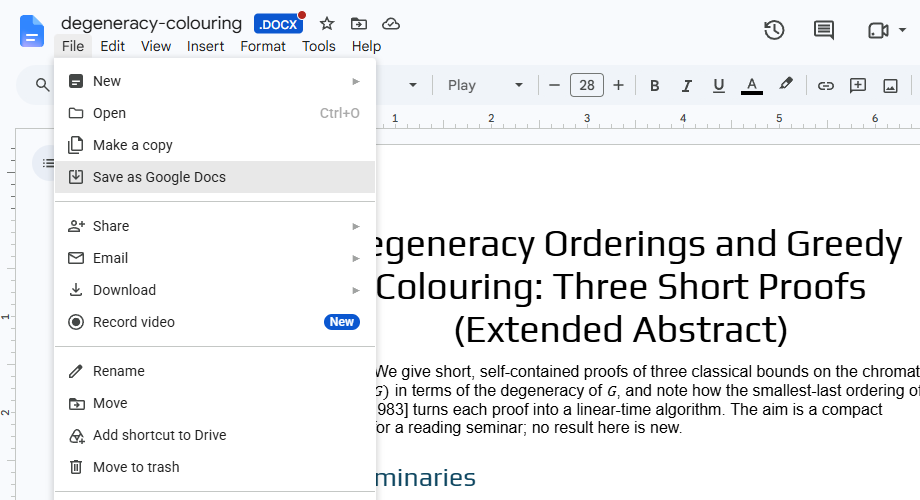
2. Open it as a Google Docs™ document
Double-clicking the .docx opens it in Docs, but still as a Word file. You can tell by the .DOCX badge next to the title. In that mode the document is not yet a Docs document, and add-ons such as LaTeXFlow cannot work on it.
To convert it, choose File › Save as Google Docs. Docs makes a converted copy next to the original and opens it; the .docx itself is left untouched. This is the step that turns Word equations into Docs equations.
If you do this often, Drive can convert on upload instead: in Drive’s Settings, turn on Convert uploads (“Convert uploaded files to Google Docs editor format”). Uploaded Word files then arrive as Docs documents directly.
3. Check that the equations came across
Click an equation in the converted document. If the Docs equation toolbar appears, it is a Docs equation, and Export will read it as one. Here is the first page of one of our test documents after the conversion, a short paper written in Word with Word equations (shown as Docs prints it):
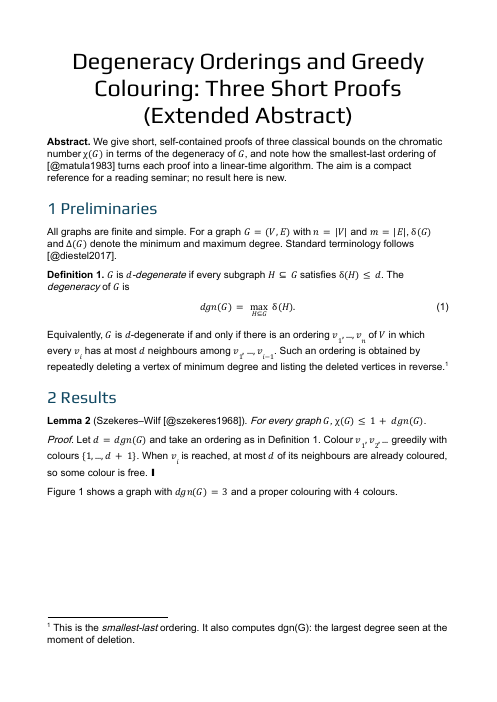
Look over the equations once, especially the larger ones. The conversion is done by Google Docs, and it does not carry everything across:
- Matrices,
casesand multi-line aligned equations come out flattened onto one line. - Function names such as lim and sin can become plain italic letters, and so can units written as text inside an equation.
- Boxed equations lose the box.
- In our longest test documents, a few equations did not arrive at all (for example 254 in the Word file, 247 in Docs).
These changes happen in Docs’ conversion, before LaTeXFlow sees the document. In most documents they affect only a few equations, and the next step fixes them.
4. Retype the few flattened equations as LaTeX
For each equation that came out wrong, delete the Docs equation and type its LaTeX in its place, between dollar signs, as ordinary text. Do the same for an equation that went missing:
1
2
3
$A = \begin{pmatrix}1&2\\3&4\end{pmatrix}$
$$f(x) = \begin{cases} 1 & x \ge 0 \\ 0 & x < 0 \end{cases}$$
$\lim_{x \to 0} \frac{\sin x}{x} = 1$
Export copies LaTeX written this way into the .tex exactly as you typed it, so these equations come out right even though Docs could not convert them. Use $…$ for an equation inside a sentence and $$…$$ for one on its own line.
Type the LaTeX rather than pasting it. Docs sometimes turns pasted $…$ back into one of its own equations; if that happens, undo once (Ctrl+Z) and the text stays.
If you also want those equations to look right in Docs, for colleagues reading or commenting there, open LaTeXFlow’s Scan tab and press Scan Document, then Convert All. Each LaTeX equation becomes a correctly typeset equation image. The image keeps its LaTeX, and Export reads it back from the image, so the .tex stays exact.
The one difference: to change such an equation later, you edit its LaTeX rather than using the Docs equation editor. The other equations stay Docs equations as before.
5. Export with LaTeXFlow
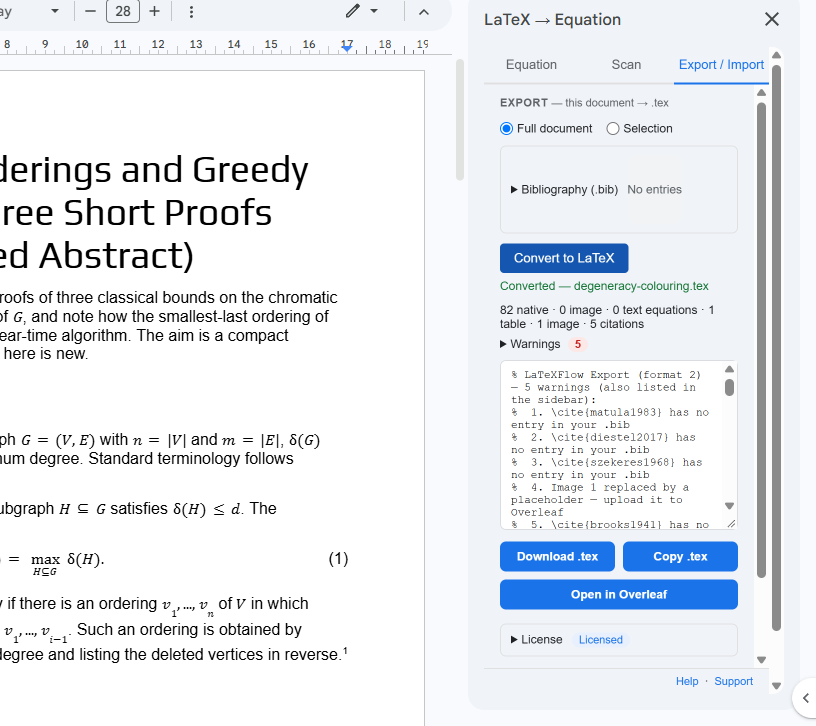
Open Extensions › LaTeXFlow, go to the Export / Import tab, leave Full document selected and press Convert to LaTeX. The result line counts what Export found. For the paper above it read “82 native · 0 image · 0 text equations · 1 table · 1 image · 5 citations”. “Native” means equations made in the Docs equation editor, which is what converted Word equations are. Equations you retyped in step 4 are counted as text equations, or as image equations after Scan. If the total is lower than the number of equations you expect, one went missing in the conversion; step 4 puts it back.
If the document has citations and you have a .bib file, paste it into the sidebar before converting, and the bibliography goes into the .tex. Citations become \cite only when they are written as [@key] markers in the text. We have not tested Word’s own citation fields or reference-manager fields through this route.
The top of the file for the same paper, with Word’s equations now in LaTeX:
1
2
3
4
5
6
7
8
9
10
11
\section*{1 Preliminaries}
\addcontentsline{toc}{section}{1 Preliminaries}

All graphs are finite and simple. For a graph $G=(V,E)$ with $n=|V|$ and
$m=|E|$, $\delta(G)$ and $\Delta(G)$ denote the minimum and maximum degree.

\textbf{Definition 1.} $G$ is $d$\textit{-degenerate} if every subgraph
$H\subseteq G$ satisfies $\delta(H)\leq d$. The \textit{degeneracy} of $G$ is
\[
dgn(G)=\max_{H\subseteq G}\delta(H). \tag{1}
\]
The hand-typed “(1)” after the display equation in Word became \tag{1}, and the heading keeps its number as written (“1 Preliminaries”) instead of getting a second one from LaTeX.
6. Download the .tex or open it in Overleaf
Download .tex saves the file. Open in Overleaf sends it to Overleaf as a new project (you need to be signed in to Overleaf). Images in the document are written as framed placeholder boxes (“Image 1”), and the warning list at the top of the .tex names each one; add the image files to the project by hand.
7. Compile
In Overleaf the project compiles on opening; locally, run pdfLaTeX on the file. This is the same paper compiled with pdfLaTeX, with its .bib pasted into the sidebar:
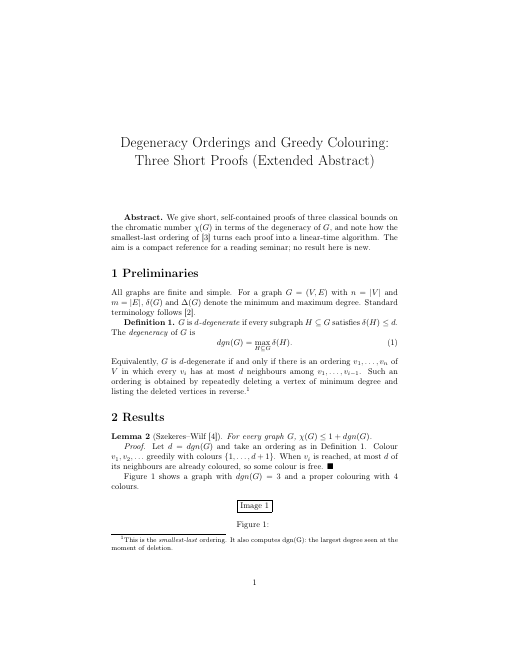
Without a .bib, the file still compiles; citations print as [?] and the top of the .tex says how to add the bibliography.
FAQ
Can Overleaf convert Word to LaTeX? Yes. Overleaf has its own Word import: New project → Import → Word document (.docx) converts the file into a new LaTeX project (Overleaf’s documentation, checked on 3 November 2026). The route in this post is for when the document lives in Google Docs™ — for example when co-authors keep editing it there — and the .tex should come from that copy; Open in Overleaf in step 6 then takes it to Overleaf directly.
Does converting Word to LaTeX keep the equations? On this route, Word equations that Docs opens as Docs equations are exported as LaTeX (step 3 shows how to check), and the few that Docs flattens or drops are retyped as LaTeX once in step 4.
How far this goes
We use this route as one of our own test sets: 20 documents written in Word with Word equations (10 teaching materials such as worksheets and tests, 10 short research-style papers), converted with Google Docs and exported with LaTeXFlow. When we tested Version 15 just before its release, all 20 .tex files compiled as exported.
What to expect, and what to do about it:
- Equations. Most come across as Docs equations and export as LaTeX. The few complex ones that Docs’ conversion flattens are retyped as LaTeX in step 4, and from then on the
.texhas them exactly as written. - Styles. Fonts, font sizes, colours and line spacing are not exported, by design; the document class sets them. Choose the look in LaTeX.
- Page layout. Headers and footers, two-column sections and blank answer space are not kept. In the
.tex, add vertical space after each question for answers, or a package such asfancyhdrfor headers. - List numbering can restart at 1 when a numbered list is interrupted by other paragraphs. Compare numbered questions with the original and adjust the numbering in the
.texwhere it differs. - Images become placeholders (step 6). Upload the image files to the Overleaf project.
- MathType equations in older
.docfiles are embedded objects rather than Word equations, and we have not tested this route with them. If Docs does not show them as equations, type them as LaTeX as in step 4.
So the route is: open the .docx in Docs, retype the few equations Docs could not convert as LaTeX, and export. The equations in the .tex are then exact, and the rest of the work is choosing the look in LaTeX.
- License keys: LaTeXFlow store
- What Export converts, activation, cancelling and refunds: Export & Import guide