
The earlier post on bringing a LaTeX file into Google Docs™ ended at its step 4: the structure of the file — headings, lists, tables, footnotes — had to be rebuilt by hand. This post takes the same situation with Import, on the Export / Import tab of LaTeXFlow, and goes through one real file part by part. Import needs a license key; the click-by-click setup is in the Export and Import walkthrough.
1. The file
The test file is a two-page note of the kind a co-author might send: a title and author line, two sections with subsections, a footnote, two \cite references with the .bib entries inside the file (a filecontents block), a bulleted list, a table whose first column holds pmatrix matrices, a figure with \includegraphics and a caption, and inline and display equations. The .bib sits inside the .tex because Import reads one file; it does not follow \input, \include or a separate refs.bib.
Open an empty tab (or an empty document), open LaTeXFlow, go to Export / Import, and press Choose .tex file in the Import section. Nothing is written yet. The sidebar first reports what it read:
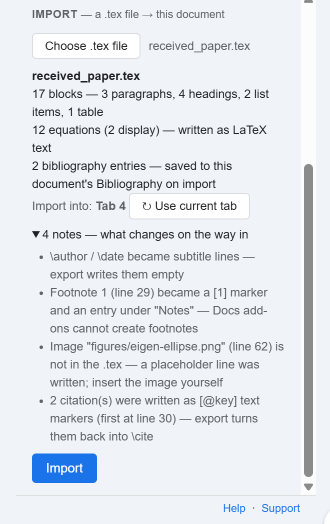
The four notes are the parts that cannot come in as they are: the author line becomes a subtitle, the footnote becomes a [1] marker with an entry under “Notes”, the figure file is not in the .tex, so a placeholder line is written instead, and the two citations are written as [@key] text markers that Export turns back into \cite. Import writes at the end of the tab named after Import into:. If that tab already has content, it asks you to tick Append anyway first.
2. Right after Import
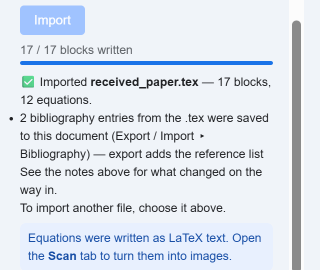
Press Import. The sidebar counts “17 / 17 blocks written”, confirms that the 2 bibliography entries were saved, and points to the Scan tab for the equations:
The top of the document:
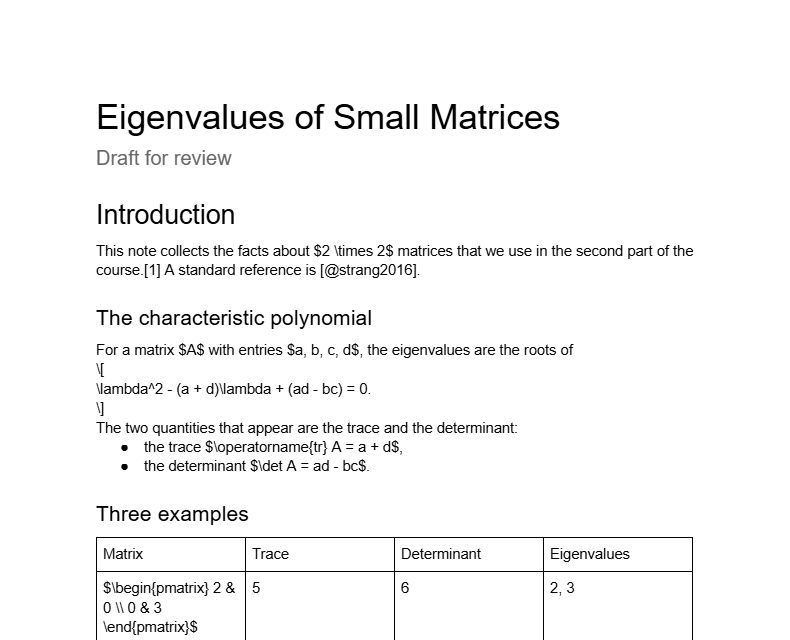
What came in as Docs structure:
\titlebecame a line in the Docs Title style and\authora line in the Subtitle style under it. The sidebar note warns that Export writes\authorback empty, so the name survives only as a line of text.\sectionand\subsectionbecame Heading 1 and Heading 2, so they appear in the Docs outline.- The
itemizelist became a bulleted Docs list. - The
tabularbecame a Docs table with the same rows and columns.
What came in as text:
- Equations are LaTeX source between delimiters, inline in
$…$and display as three lines,\[, the equation,\]. This is deliberate: the source stays editable until you decide to render it (section 4). - Citations are
[@strang2016]and[@noether1918], a marker with the citation key.
The lower half of the file:
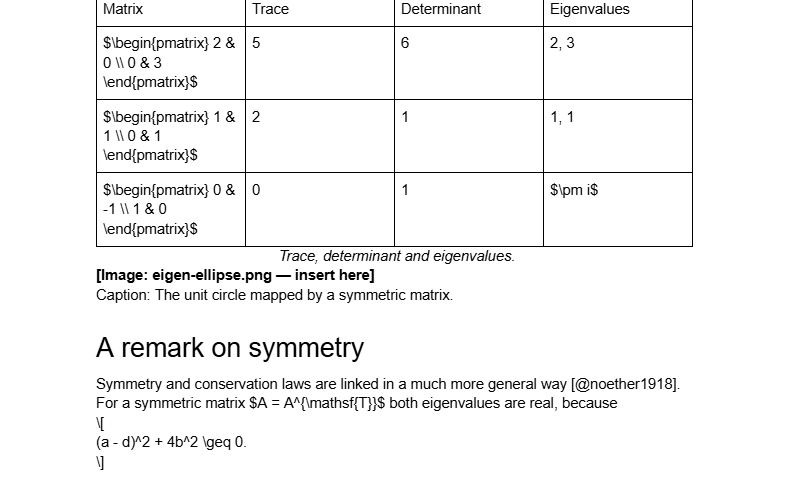
- The table caption is an italic, centred line right under the table.
- The figure is a bold line
[Image: eigen-ellipse.png — insert here]. Only the file name is kept. The image itself was never inside the.tex, so insert it from your own copy and delete the line. - The figure caption is a plain line starting with
Caption:.
Google Docs™ has no caption object, so both captions are ordinary paragraphs, styled to stand apart from the body text.
The footnote text is at the very end of the document, under a heading Notes, as [1] The proofs follow the order of the lecture notes. The [1] in the Introduction points to it. A Docs add-on cannot create real Docs footnotes, so this is the closest it gets; if you want a real one, use Insert › Footnote and move the text.
3. The bibliography
The two .bib entries were not written into the page. They were saved to the document’s Bibliography on the Export / Import tab, which now shows “2 entries”:
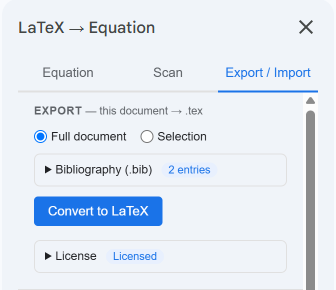
This is the Bibliography that Export reads. When the document is exported again, each [@key] marker goes back to \cite{key} and the entries go back into the file, so keep the markers as they are while you edit. The Bibliography belongs to the whole document, not to one tab. If the document already has a different bibliography, Import does not overwrite it and says so.
4. Turning the equations into images
When the text is settled, or whenever you want the reader to see rendered maths, open the Scan tab and press Scan Document. In this file it found “12 equation(s) — display: 2, inline: 10”, the same count the import summary gave. Convert All replaced all 12, including the matrices inside the table cells:
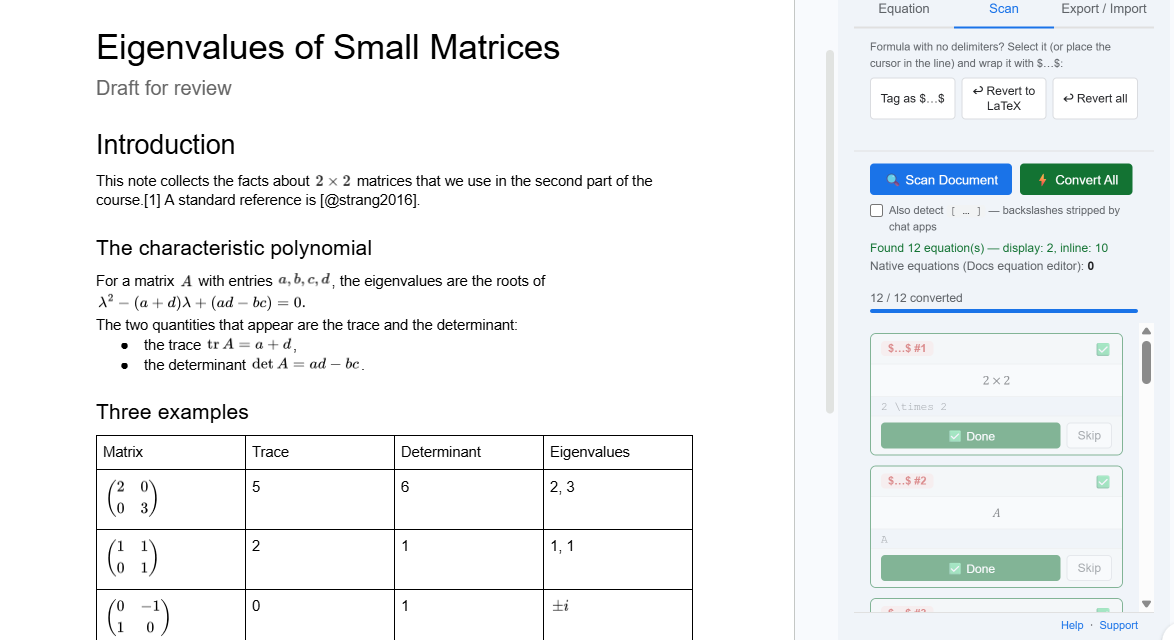
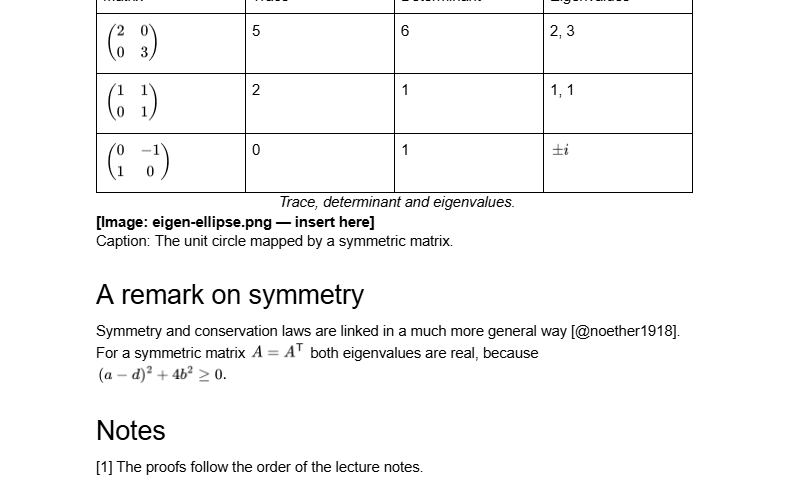
One thing to know: the two display equations become images at inline size, aligned left, not centred on their own line as they would be in the PDF. Centre them with the paragraph alignment button if it matters. Scan works on the tab you are in; in a document with several tabs, run it in each one.
From here the document is an ordinary Google Docs™ file: share it, comment, suggest edits. To change an equation after conversion, Revert to LaTeX on the Scan tab turns it back into source.
5. What else changes on the way in
The file above did not use every case. From the add-on’s own rules, the ones you are most likely to meet:
In the .tex | In the document |
|---|---|
\ref{key} | the text [ref:key] |
\label{…} | dropped |
% comments | dropped |
| a command Import does not know | the command and its argument, kept as monospace source |
| an environment Import does not know | the whole environment, kept as monospace lines |
\tableofcontents | a bold line telling you to use Insert › Table of contents |
\usepackage lines | not written; Export writes its own preamble |
Each of these appears as a note in the pick summary before you press Import. The exception is packages that Export writes itself (such as amsmath or graphicx): they are skipped without a note.
6. Where it stops
Import gets the text, the structure Docs can hold, and the equations in. It does not bring back what Docs has no place for: real footnotes, captions tied to their figure, cross-references that update, the figure files. The parts that need your hand are marked in the document itself — the bold placeholder lines, [1], [ref:…], [@…] — so you can find them by searching for [. What does come back unchanged when a document goes from Docs to .tex and back is measured in Google Docs™ to LaTeX and back.
- License keys: LaTeXFlow store
- Activation, cancelling and refunds: Export & Import guide